Self-hosted alternative to Claude.ai and ChatGPT
Posted
TLDR: It’s Open WebUI + Conduit! I’ve been running it for a few months now on a small VPS. It pulls the latest models from OpenRouter and sits completely hidden from the public internet. There are no open web ports on the server at all. It’s just WireGuard and a key-only SSH.
This post walks through why I built it, how the pieces fit together, and the Open WebUI settings I eventually settled on.
Motivation
These days, seemingly every week a new crazy model drops. As of the past couple of days, Gemini 4 Neon has been all the rage. Before that it was Opus 5.5. To think that Kimi K3 was launched just 4 months ago says how dizzyingly fast these models are hitting the market.
I’d been wanting a way to run these new models with my own chats and prompts, on something more sophisticated than the OpenRouter web UI.
Also, I wanted something that works for my wife. Both of us already have some form of AI subscription through work. We realised that we are paying a lot considering our usage does not warrant two personal subscriptions. It was wasteful.
An ideal scenario was one shared setup with individual profiles where we both use whatever model fits the job and only pay for what we use.
But, these were the three non-negotiables:
- It has to work everywhere. A clean web app on our laptops, a real native app on our phones and not a browser tab pinned to the home screen.
- It has to have safe multi-user sharing. All users should have their own accounts, private histories, and model pickers.
- As close to ChatGPT or claude.ai. My wife (not in tech) shouldn’t be able to tell the difference. Web search, file uploads, model picker, RAG, memory and great UI/UX should be the norm.
One thing this is NOT: an attempt to run everything locally or stick strictly to open weights. Open WebUI and the plumbing around it are open source, but the models and APIs are whatever performs best.
The sauce
Note: I have used example.com instead of my actual domain throughout this post.
| Feature | How to get it |
|---|---|
| Web app | Open WebUI
at chat.example.com |
| Phone app | Conduit , a native Open WebUI client |
| Model picker | Every model on OpenRouter , with a handful pinned |
| Web search | Linkup API |
| Chat with PDFs & files | Mistral OCR + embeddings + reranking |
| Code interpreter | Pyodide (Python running in the browser) |
| Reliability | Nightly encrypted backups, pinned versions, a 5-10 minute monthly routine |
The setup
Architecture
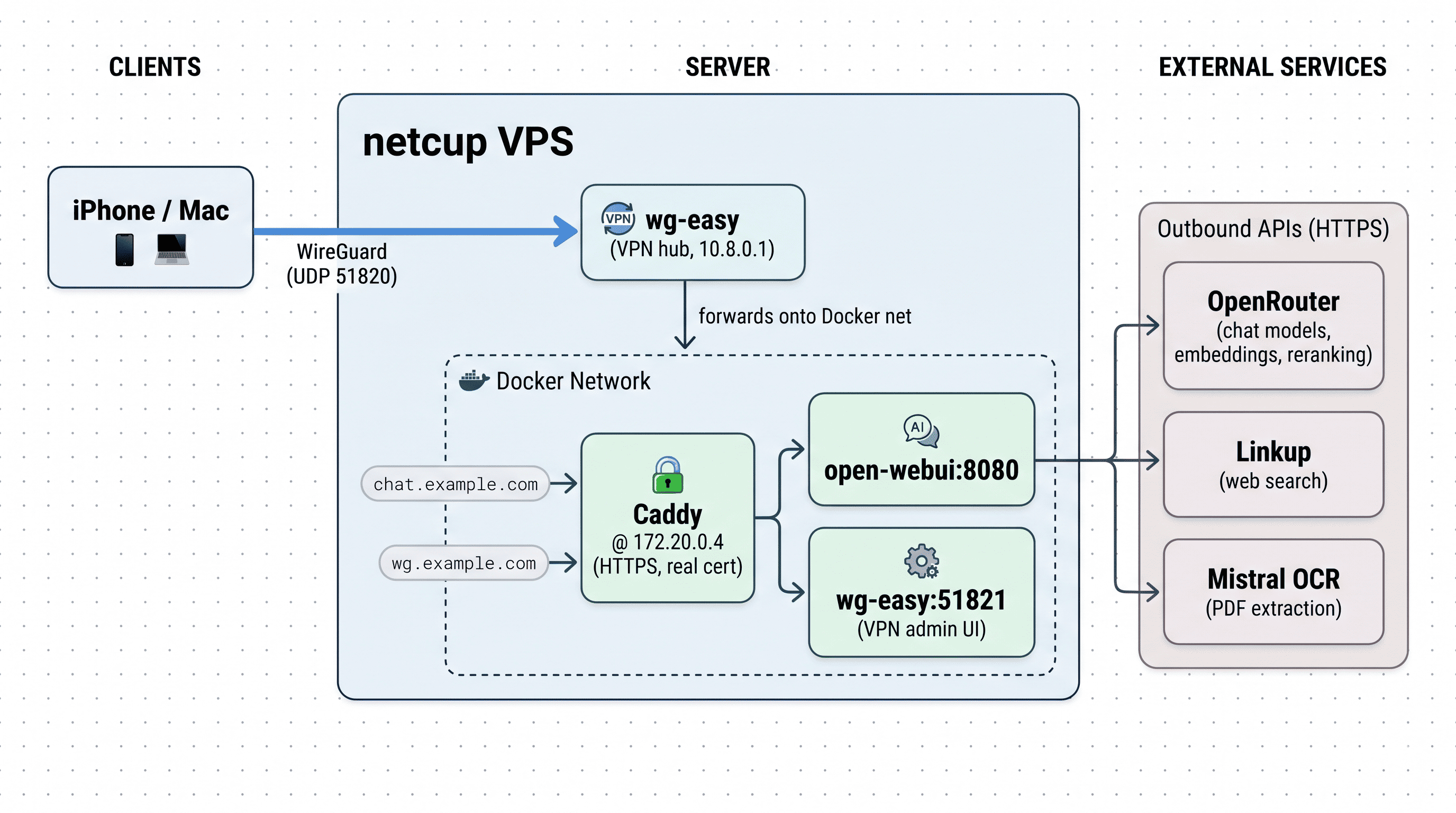
The whole thing is just three containers (wg-easy, Caddy, and Open WebUI), one docker-compose.yml, a 5-line Dockerfile, and an 11-line Caddyfile.
The server and the VPN
Everything runs on a netcup VPS 500 G12 (2 vCPU, 4 GB RAM, 128 GB NVMe) on Debian 13. That might sound tiny for an LLM setup, until you remember the server isn’t running any models at all. Inference, embeddings, reranking, and OCR all happen over APIs, so the VPS is mostly just serving a web app and storing chats. I also added a 2 GB swapfile just in case of memory spikes.
The firewall allows only two inbound ports: UDP 51820 for WireGuard and a non-default TCP port for key-only SSH. Much much safer.
wg-easy handles WireGuard, and it is the only way in. Since WireGuard silently drops packets from unknown peers, there is no public web server for anyone on the internet to scan or poke at. Every device gets its own client config too, so if a phone ever gets lost, I can cut it off with a single toggle.
There is a small chicken-and-egg problem when you set this up for the first time: if the VPN admin UI sits behind WireGuard, how do you open it before you even have a WireGuard config? The compose file binds wg-easy’s admin port to loopback (127.0.0.1:51821:51821). So I just SSH-tunneled in once (ssh -L 51821:localhost:51821 ...) to create my iPhone profile and scan the QR code. After that, https://wg.example.com
works over the VPN, and the loopback binding stays around as a fallback if I ever get locked out.
The client configs are split-tunnel. Only 10.8.0.0/24 (the VPN) and 172.20.0.0/24 (the Docker network) go through the VPS, while everything else goes direct as usual. With On-Demand turned on in the iOS WireGuard app for both Wi-Fi and cellular, the tunnel stays up in the background. Neither of us even thinks about it.
One gotcha I ran into early on: chat.example.com worked fine on cellular, then mysteriously refused to load on home Wi-Fi. Turns out a lot of home routers enable “DNS rebind protection”, which silently drops public DNS records that resolve to private IP addresses. Setting DNS = 1.1.1.1 in the default WireGuard client settings fixed it for good.
Real HTTPS with zero open web ports
This is probably the neatest part of the setup. chat.example.com and wg.example.com are regular public DNS A-records on Cloudflare (DNS-only, grey cloud), except they point straight to a private IP: 172.20.0.4, which is Caddy’s fixed address on the Docker bridge network. Anyone on the internet can resolve the hostname, sure, but only devices inside the WireGuard tunnel can actually reach it.
Normally, Let’s Encrypt verifies domain ownership by hitting your server on port 80 or 443. Obviously that won’t work when neither port is open. Caddy gets around this using the DNS-01 challenge. It uses a Cloudflare API token (scoped strictly to example.com with only Zone / Zone / Read and Zone / DNS / Edit) to create a temporary TXT record that proves ownership. That way you get real, trusted TLS certificates with no browser warnings and no open web ports.
The only custom build step in the whole stack is baking the Cloudflare DNS plugin into Caddy:
# Dockerfile.caddy
FROM caddy:2-builder AS builder
RUN xcaddy build --with github.com/caddy-dns/cloudflare

FROM caddy:2
COPY --from=builder /usr/bin/caddy /usr/bin/caddy
And the Caddyfile itself is just 11 lines:
{
    acme_dns cloudflare {env.CF_API_TOKEN}
}

chat.example.com {
    reverse_proxy open-webui:8080
}

wg.example.com {
    reverse_proxy wg-easy:51821
}
The Compose file (and one Docker gotcha)
Early on, Caddy failed to start after a restart with Address already in use. Turns out while Caddy was down for a second, Docker happily gave its static 172.20.0.4 IP to another container. Restricting the network’s dynamic allocation pool to the upper half of the subnet (ip_range: 172.20.0.128/25) solved this permanently so nothing else can grab .4.
Here is the full docker-compose.yml:
services:
  wg-easy:
    image: ghcr.io/wg-easy/wg-easy:15
    container_name: wg-easy
    restart: unless-stopped
    cap_add:
      - NET_ADMIN
      - SYS_MODULE
    sysctls:
      - net.ipv4.ip_forward=1
      - net.ipv4.conf.all.src_valid_mark=1
    ports:
      - "51820:51820/udp"
      - "127.0.0.1:51821:51821"   # admin access via SSH tunnel only
    volumes:
      - wg-easy:/etc/wireguard
      - /lib/modules:/lib/modules:ro
    networks:
      web:

  caddy:
    build:
      context: .
      dockerfile: Dockerfile.caddy
    container_name: caddy
    restart: unless-stopped
    environment:
      - CF_API_TOKEN=${CF_API_TOKEN}
    volumes:
      - ./Caddyfile:/etc/caddy/Caddyfile:ro
      - caddy-data:/data
      - caddy-config:/config
    networks:
      web:
        ipv4_address: 172.20.0.4   # matches the chat./wg. DNS records

  open-webui:
    image: ghcr.io/open-webui/open-webui:v0.13.3
    container_name: open-webui
    restart: unless-stopped
    volumes:
      - open-webui:/app/backend/data
    environment:
      - WEBUI_URL=https://chat.example.com
    networks:
      web:

networks:
  web:
    driver: bridge
    ipam:
      config:
        - subnet: 172.20.0.0/24
          # dynamic IPs only from .128+, so no container can take Caddy's static .4
          ip_range: 172.20.0.128/25

volumes:
  wg-easy:
  caddy-data:
  caddy-config:
  open-webui:
The app, the APIs, and the phone client
Open WebUI
is the core of the setup. I pin it to an exact release tag (v0.13.3) instead of :main, because its database migrations only go forward and I want to upgrade when I’m actually paying attention.
OpenRouter is our single gateway for models, embeddings, and reranking. One API key and one credit balance gives us almost every major release, usually within hours of launch, with a spend limit in the dashboard as a safety net.
Linkup handles web search. I initially started with self-hosted SearXNG , then switched to Linkup’s hosted API soon after because the results were noticeably better.
Conduit
is the native iOS (and Mac) Open WebUI client. This is what makes the phone experience actually feel like ChatGPT. We share it over Family Sharing and point both phones at https://chat.example.com
. Since WireGuard On-Demand is always active, it just opens and works like any normal app.
Keeping maintenance low
Since my wife uses this every day, I really didn’t want it turning into a weekend maintenance chore. A few simple habits keep it low-effort:
- Nightly encrypted backups. At 4 AM, a cron job pauses Open WebUI for a few seconds so SQLite flushes cleanly, tars up the Open WebUI volume, WireGuard keys, and config, encrypts the archive with
gpg, and uploads it to a private Cloudflare R2 bucket usingrclone. The VPS keeps the last 7 archives locally, and an R2 lifecycle rule clears remote copies after 30 days. Each backup is only a few megabytes because I exclude Open WebUI’s ~1 GB local cache (it just re-downloads on demand). - Instant snapshots before updates. netcup has copy-on-write snapshots in the control panel, which gives me a quick rollback if an update breaks something.
- Easy disaster recovery. WireGuard clients connect to
vpn.example.cominstead of a raw IP. Because the backups havewg-easy’s keys and the compose file pins the same Docker subnet, rebuilding from scratch just means restoring the backup and updating one DNS record. Both phones reconnect on their own. - One git repo as the source of truth. The compose files, Caddyfile, backup script, and a step-by-step runbook all live in a repo on my Mac, which I
rsyncup to the server whenever I change anything.
Once a month, I take a snapshot in the netcup panel, skim the Open WebUI and Conduit release notes, bump the version tag if everything looks fine, and run:
./backup.sh
apt update && apt upgrade -y
rclone selfupdate --package deb
docker compose pull && docker compose build --pull caddy
docker compose up -d
That’s pretty much it. wg-easy stays pinned to :15. VPN software is the last thing I want upgrading itself by surprise.
My Open WebUI settings
Open WebUI has a lot of settings, and most of them you can just leave alone. These are the ones I actually tweaked.
Connections, models, and the task model
Everything goes through one OpenAI-compatible connection pointed at https://openrouter.ai/api/v1
. The built-in OpenAI connection, Ollama, and user “direct connections” are all turned off so every request goes through one place and one bill. I also enabled base model list caching. OpenRouter exposes hundreds of models, and caching the list makes page loads and mobile startup noticeably faster.
In the default model metadata, I turned on the capabilities we actually use (vision, file upload, web search, code interpreter, citations, memory and built-in tools) and left unused ones (image generation, terminal) off so models don’t see dead tools. Function calling is set to native, which lets the chat model decide on its own when to search the web or run code.
For background stuff like generating chat titles, tags, and search/retrieval queries, Open WebUI uses a separate task model set to DeepSeek V4 Flash. No point burning frontier model tokens just to name a chat. Follow-up suggestions and autocomplete are both off too. They trigger a model call on almost every message and aren’t really worth it.
Web search
Web search runs on Linkup at standard depth (the multi-step deep mode is slower and costs more), with output type set to searchResults instead of Linkup’s sourcedAnswer. That way our chosen chat model writes the answer from the raw sources rather than letting Linkup synthesize it.
Two toggles here made a big difference: Bypass web loader and Bypass embedding and retrieval are both on. Instead of scraping every search result page from the VPS or running Linkup’s 8 snippets back through embeddings and reranking, Open WebUI just passes those snippets straight to the model. It is faster, cheaper, and avoids dropping useful context. Concurrency is set to 5 requests, and I turned off the “your query will be sent to…” confirmation popup since it’s just the two of us.
Making PDFs actually work
Chatting with PDFs is usually where self-hosted setups fall short compared to ChatGPT. Since a 4 GB VPS shouldn’t be doing OCR or embeddings locally, every heavy step runs over an API:
- Extraction with Mistral OCR. Scanned documents, tables, and messy multi-column layouts come out as clean Markdown. If extraction is bad, everything downstream suffers, so getting this step right matters the most.
- Chunking. I use a token-based splitter (
cl100k_base) with Markdown-header splitting enabled, 2000-token chunks with 200 tokens of overlap, and a minimum chunk size target of 300. That way short OCR headings get merged instead of wasting retrieval slots as tiny standalone fragments. - Hybrid retrieval (
35candidates). Embeddings run onqwen/qwen3-embedding-8bvia OpenRouter, paired with BM25 keyword search at an equal0.5weight. I also enabled enriched texts, which indexes filenames, titles, and section headings alongside the body text (so asking about “the lease agreement” still matches chunks that never repeat those exact words). The keyword half catches exact names, IDs, and numbers that embeddings tend to blur. - Reranking (
35 → 15).cohere/rerank-4-fast, also via OpenRouter as an external reranker pointed athttps://openrouter.ai/api/v1/rerank(with an explicit timeout), narrows those 35 candidates down to the top 15 chunks that actually reach the model.
Image uploads
For images, I turned on automatic image compression on uploads so full-res iPhone photos get downscaled before storage and vision calls instead of bloating backups and token counts.
Code execution, users, and what’s turned off
Code execution and the code interpreter both run on Pyodide, which executes Python right in the browser using WebAssembly. That means no Jupyter server to maintain or sandbox, and nothing runs on the VPS. For quick calculations or “plot this CSV” type tasks, it is more than enough.
For users and permissions, sign-ups are off. I created both accounts myself, and any stray account would land in pending anyway. Regular users get everything inside chat (file uploads, editing, regenerating, temporary chats, side-by-side models, voice, notes, folders, calendar, web search, and code interpreter), while workspace creation, public sharing, API keys, image generation, and community sharing stay off to keep the UI clean. Sessions are set generously (4-week JWT, 90-day sessions) so our phones don’t randomly log us out.
Closing thoughts
This setup has been running for a few months now, and the best thing I can say about it is that I barely think about it anymore. My monthly maintenance takes maybe 5-10 minutes, backups just happen in the background, and nothing has broken on its own.
More importantly, it passed the wife test. She opens Conduit on her phone or the web app on her laptop, picks a model, uploads PDFs, searches the web, and never once has to think about WireGuard, Caddy, or whatever VPS is sitting behind it.
As for the original reason I built it: whenever the next hyped model drops, it usually shows up in our model picker within hours on OpenRouter. And paying purely for what we actually use has been noticeably cheaper than maintaining two personal AI subscriptions.
If you don’t mind spending an afternoon setting up Docker and WireGuard, this is a pretty great way to get a private, ChatGPT-like setup for your household without locking yourself into a single provider.